Know if Zoom can hear you.
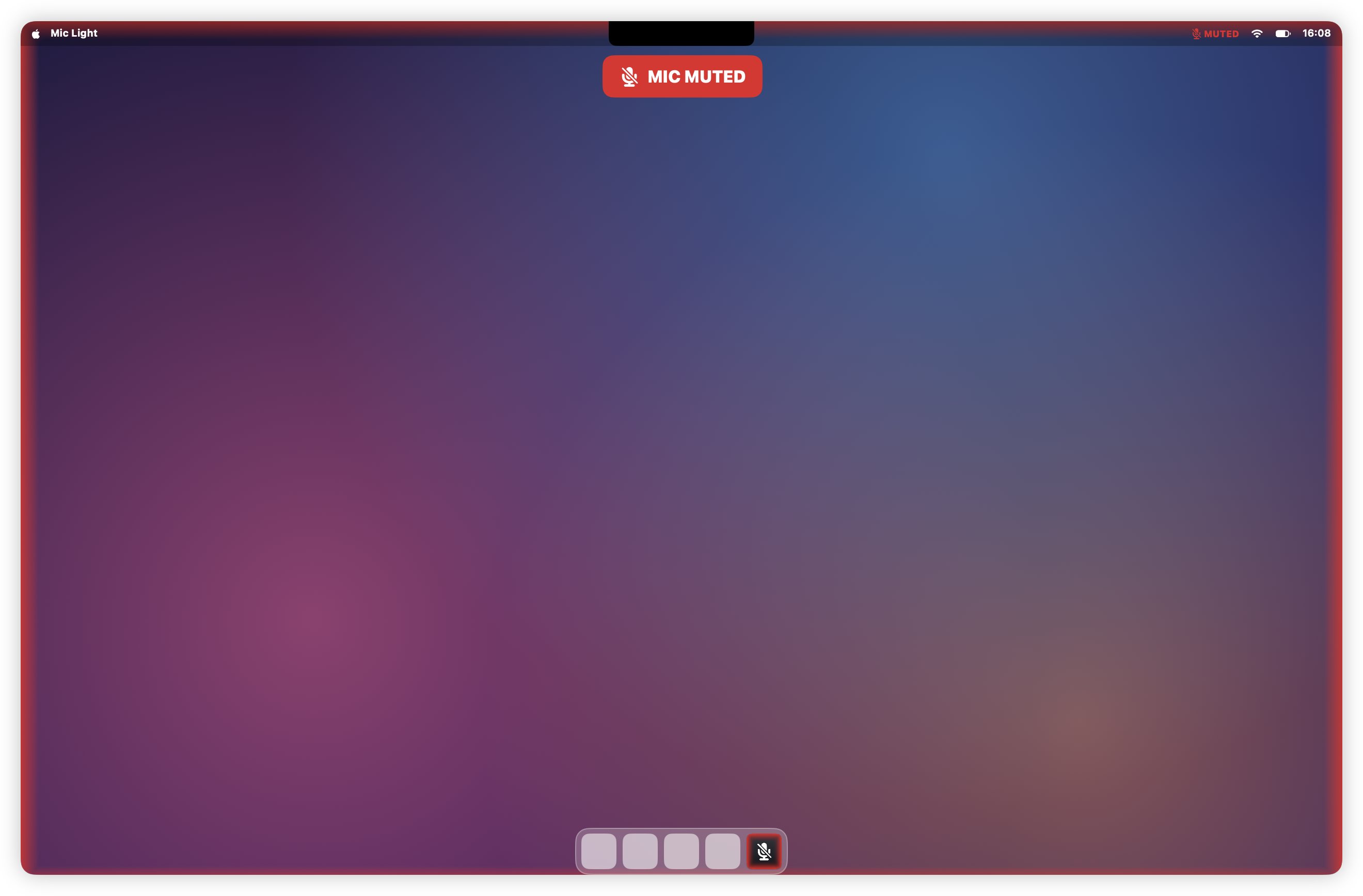
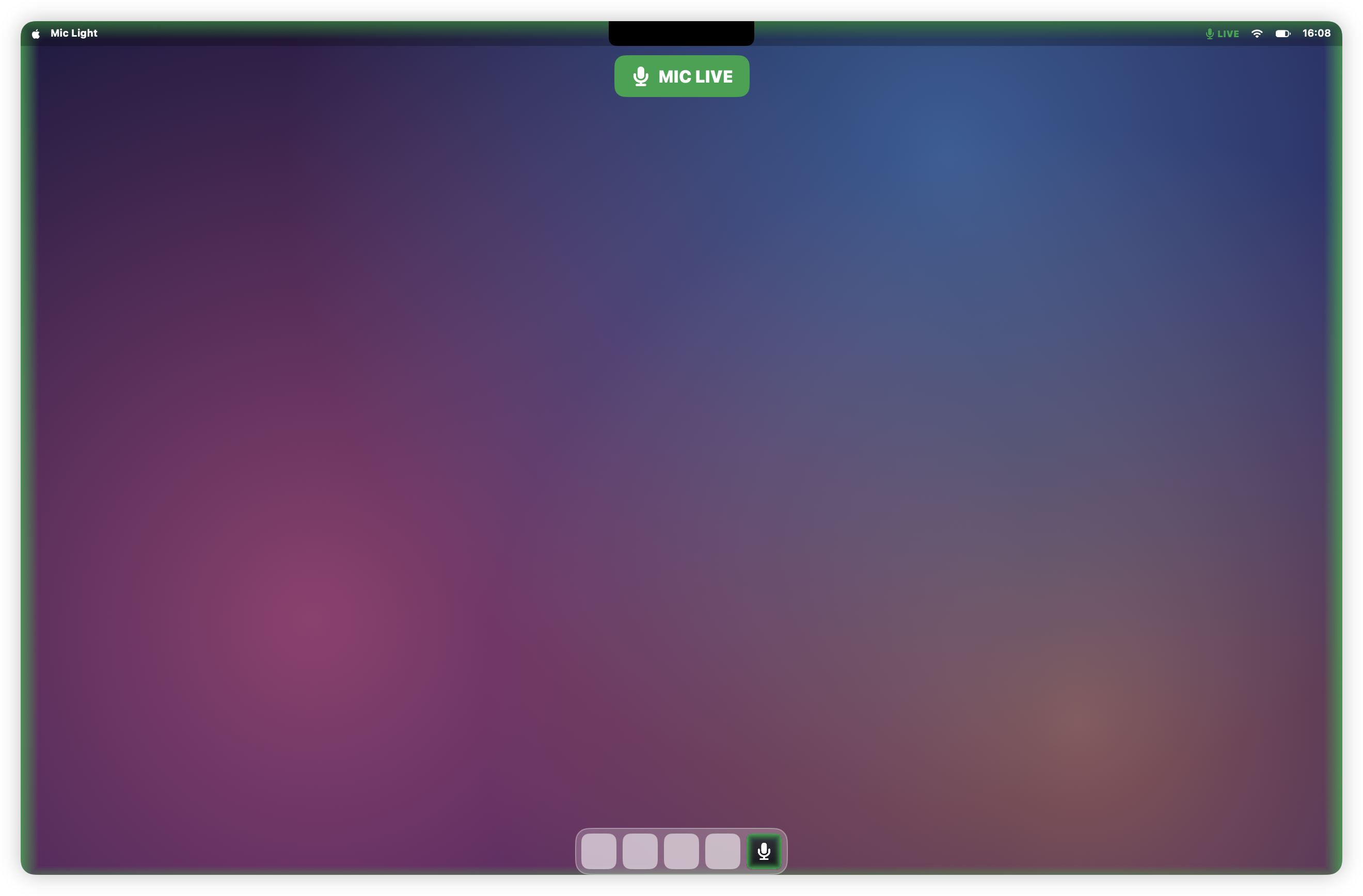
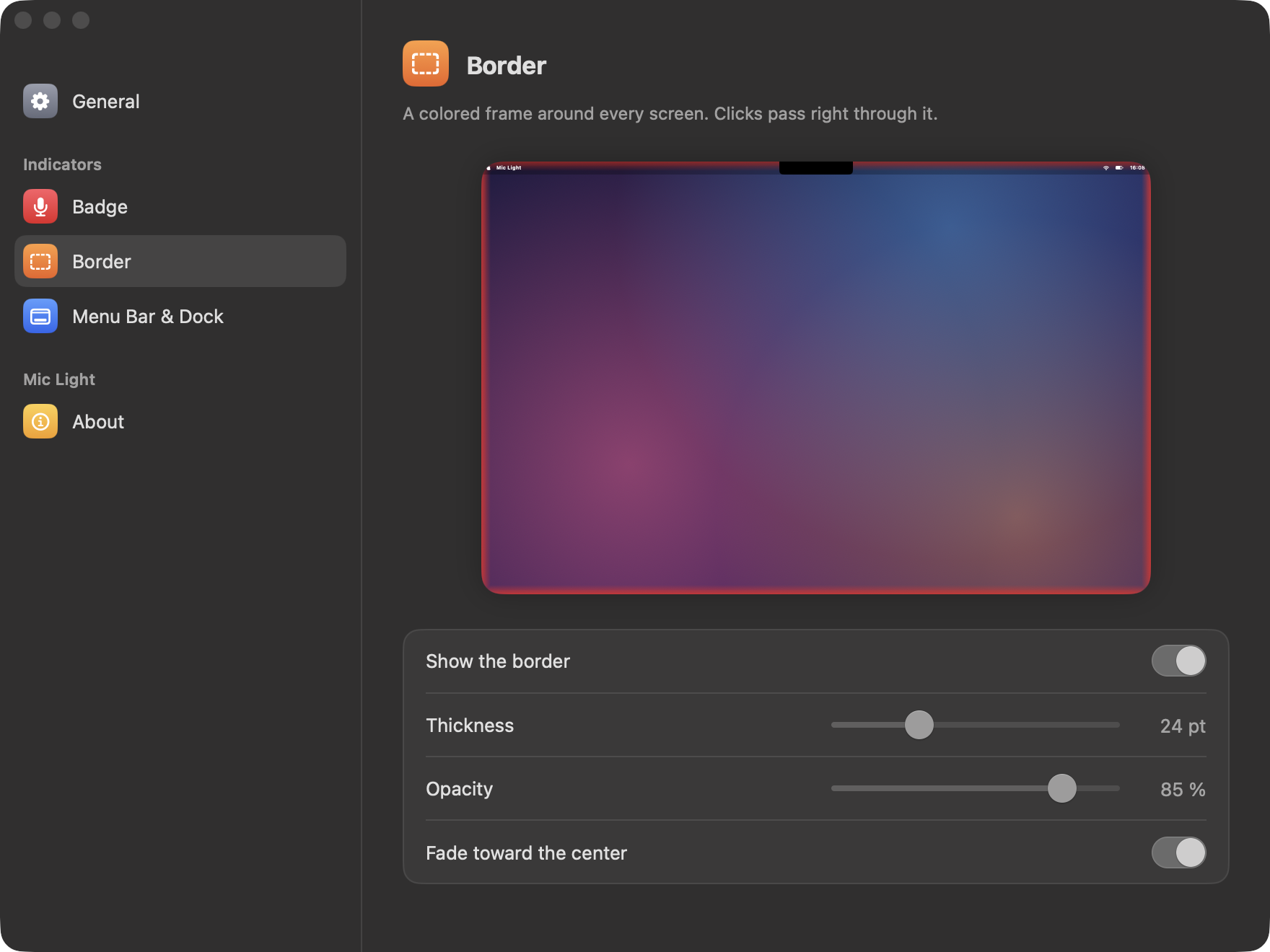
A red or green signal you can't miss: around your screen, above your windows, in the menu bar and in the Dock.
Free and open source. macOS 15 or later. Signed and notarized by Apple, and it keeps itself up to date.
 Mic Light
A red or green signal you can't miss: around your screen, above your windows, in the menu bar and in the Dock.
Free and open source. macOS 15 or later. Signed and notarized by Apple, and it keeps itself up to date.
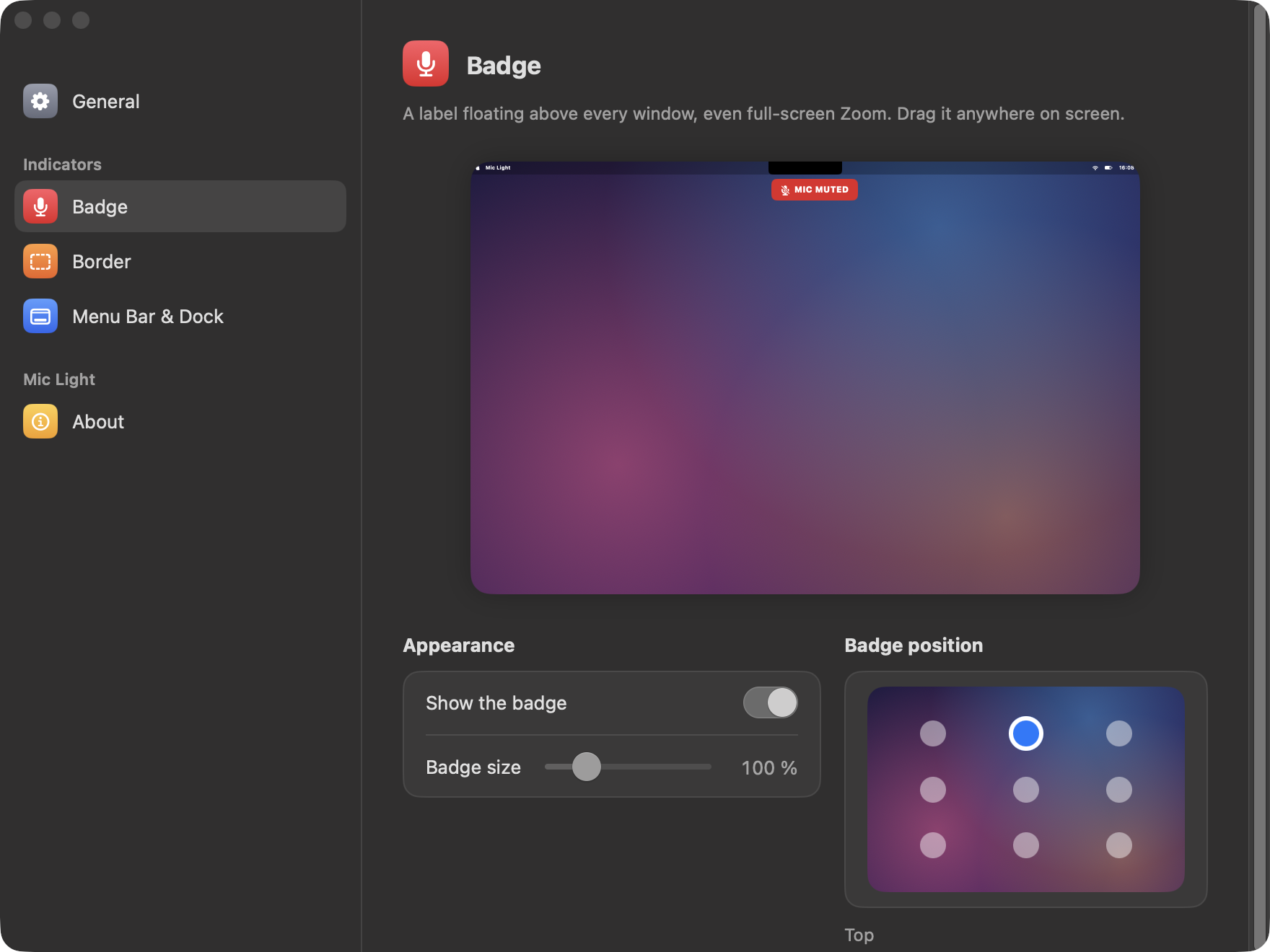
Turn on any combination. Outside meetings, the badge and the border step aside and the icons turn grey.
Every setting shows its effect as you change it, on a miniature of your own desktop and on your real screen.
0–80 ms
Zoom only refreshes its own mute menu about once a second. Mic Light also watches your participant tile, which changes the instant you toggle, so the signal follows your click, not Zoom's timer.
Zoom has no public way to share its mute state, so the app reads what Zoom already shows on screen, through macOS Accessibility. It never clicks, types or sends anything to Zoom, and nothing leaves your Mac.
That is why macOS asks you to allow it under Accessibility the first time.